
Setting Daily Profit Targets and Loss Limits
Risk Management Overview
Risk Management helps protect your trading accounts by automatically stopping trading when your daily profit or loss reaches a specified threshold. When a limit is breached, the account is "locked" - all positions are flattened and no new trades can be placed until the account is unlocked.
This lock applies only within the trade copier. Your accounts are not locked at the brokerage.
Setting Risk Limits
You can set two types of limits for each account:
-
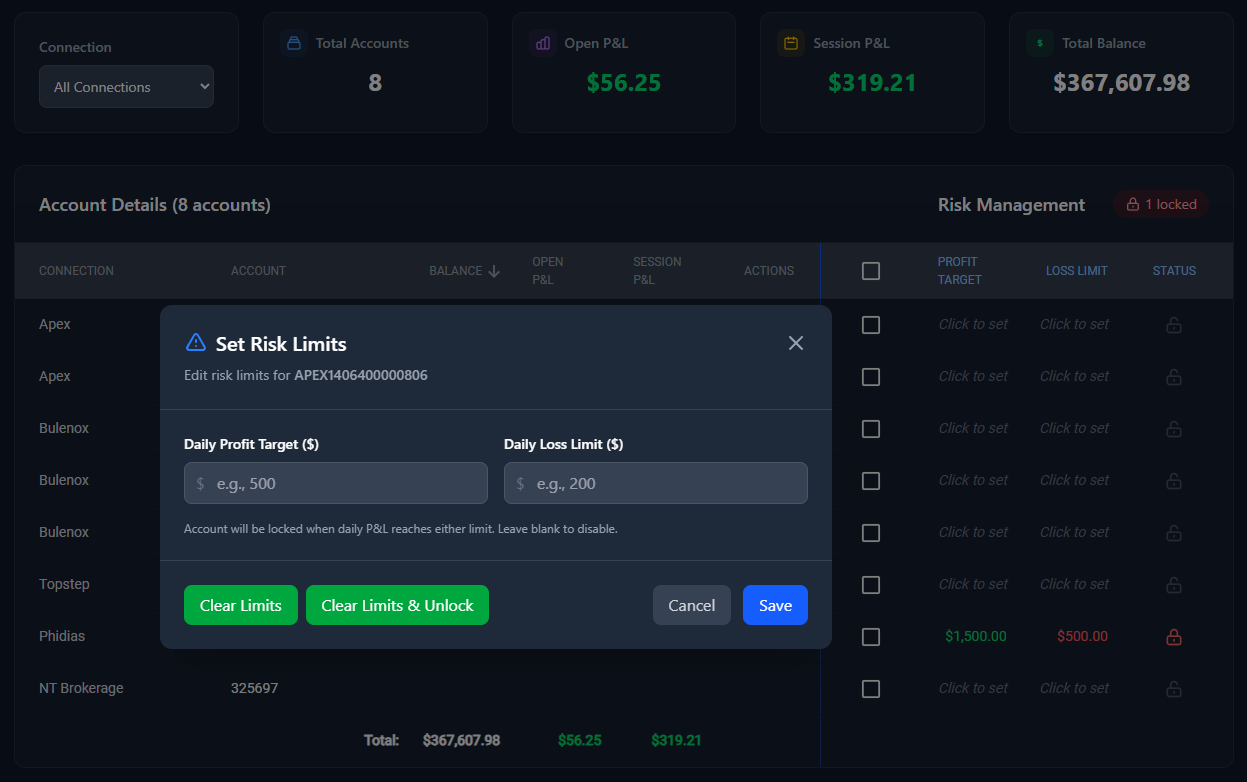
Daily Profit Target - When your session P&L reaches this positive amount, the account locks. For example, if you set $500, trading stops once your session profit hits $500.
-
Daily Loss Limit - When your session P&L reaches this negative amount, the account locks. For example, if you set $200, trading stops once your session loss hits -$200.
To set risk limits:
- Go to the Risk Management page
- Click on a cell in the Profit Target or Loss Limit column for any account
-
Enter your desired values and click Save
Bulk Editing Risk Limits
To apply the same risk limits to multiple accounts at once:
- Select accounts using the checkboxes in the table
- Click the Set Risk Limits button that appears
- Enter your Daily Profit Target and/or Daily Loss Limit values
-
Click Apply to X Accounts
What Happens When a Limit is Breached
When your session P&L reaches either limit:
- All open positions on that account are automatically flattened (closed)
- All pending orders are cancelled
- The account becomes "locked" - shown with a red lock icon in the Status column
-
No new trades can be placed on the locked account until it is unlocked
If the locked account is a leader account with Risk Management enabled, all follower accounts will also have their positions flattened.
Enabling Risk Management for Copy Trading
For risk limits to take effect on copy trading configurations, you must enable the Risk Management toggle on the Copy Trading page. This toggle appears next to the main Copy Trading toggle. When enabled:
- Risk limits are monitored on both leader and follower accounts
- If a leader account gets locked, all its followers are also flattened
-
If a follower account gets locked, only that follower stops receiving trades
Unlocking Accounts
You have two options when unlocking a locked account:
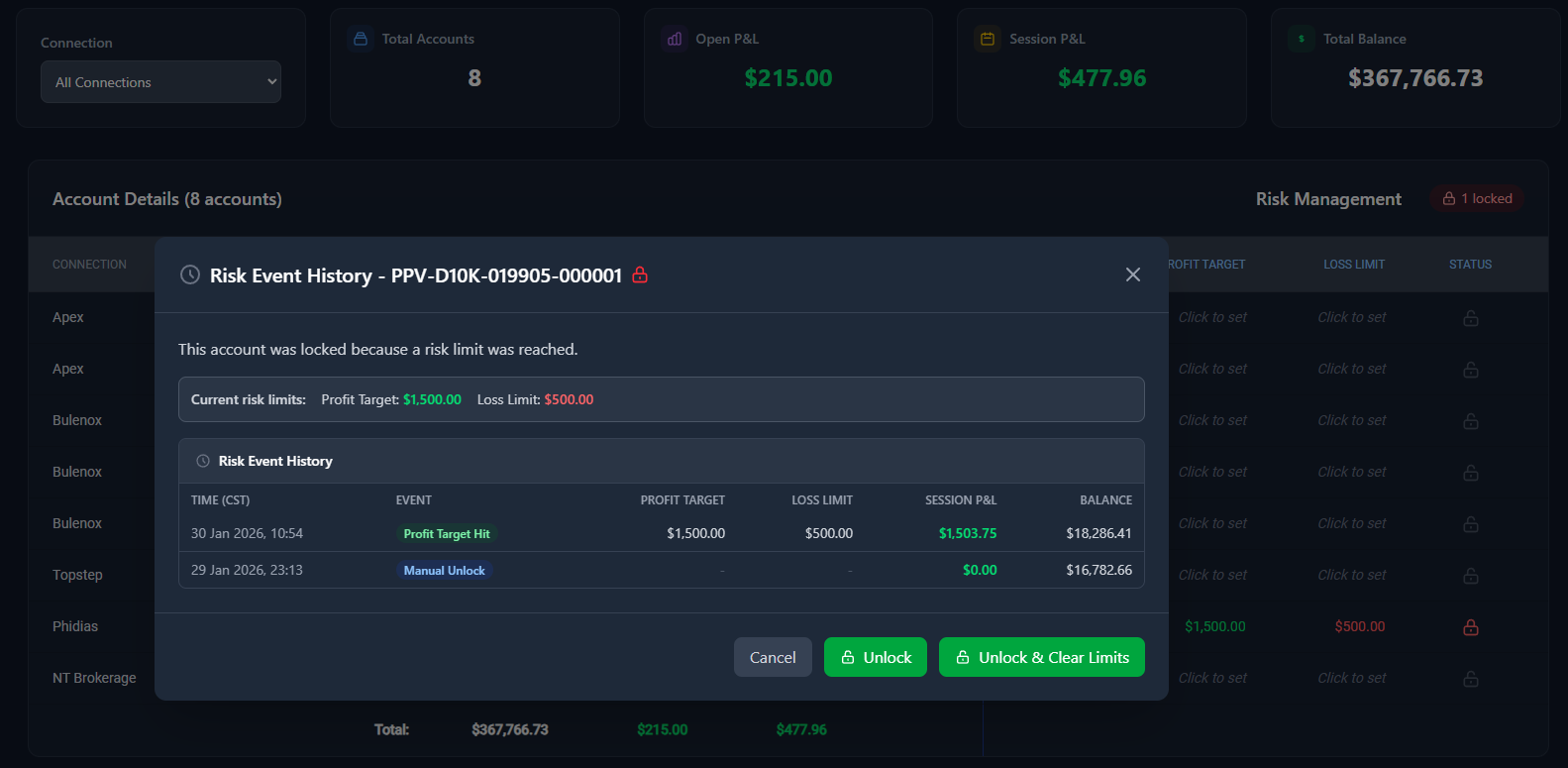
- Unlock - Unlocks the account but keeps your risk limits in place. The account will lock again if it reaches the same limits.
-
Unlock & Clear Limits - Unlocks the account and removes all risk limits. The account can trade freely with no automatic protection.
To unlock an account go to the Risk Management page:
- Click the lock icon in the Status column
- Review the risk event history to see why the account was locked
-
Choose either Unlock or Unlock & Clear Limits
Automatic Daily Reset
Every day at 4:00 PM Central Time, all locked accounts are automatically unlocked. This aligns with the futures market session reset. Your risk limits remain in place - only the locked status is cleared.
Note: Risk checks are paused between 4:00 PM and 5:00 PM Central Time to prevent false triggers during the session rollover period when historical data is being processed.
Viewing Risk Event History
To see a history of risk events for any account:
- Click the lock icon (or unlocked icon) in the Status column
- The modal shows a table of past events including:
- When limits were breached (Profit Target Hit, Loss Limit Hit)
- When accounts were manually unlocked
-
The session P&L and balance at the time of each event
Important Notes
- You can set just a Profit Target, just a Loss Limit, or both
- Leave a field blank to disable that specific limit
- The "Clear Limits" button removes both limits but does not unlock locked accounts
- The "Clear Limits & Unlock" button removes both limits and unlocks all selected accounts