
Contract Liquidity Check
The Contract Liquidity Check helps you make sure you are trading the correct, most liquid contract month for your chosen symbol. Futures contracts expire on a set schedule, and as expiration approaches, traders gradually move (or "roll") to the next contract month. Trading a stale or near-expiry contract can mean poor fills, low volume, and unnecessary risk.
FutuCopy monitors this for you and shows a small calendar icon next to the contract symbol on your leader tab whenever it detects a potential issue. Clicking the icon opens the Contract liquidity check window.
What the calendar icon colors mean
- Yellow calendar icon (blinking) — Rollover suggested. A different contract month for the same product is being traded more actively (higher daily volume) than the one you have selected. Your contract still works, but liquidity has already moved on. Consider switching to the more active month.
- Red calendar icon (blinking) — Expiring soon. Your contract expires within the next 7 days. You should switch to a later month before it expires, otherwise copy trading on it will stop working.
- Red calendar icon (not blinking) — Already expired. This contract is no longer tradable. You must switch to an active month to continue copy trading this product.
If no icon is shown, your selected contract is the most active month and is not near expiration — no action needed.
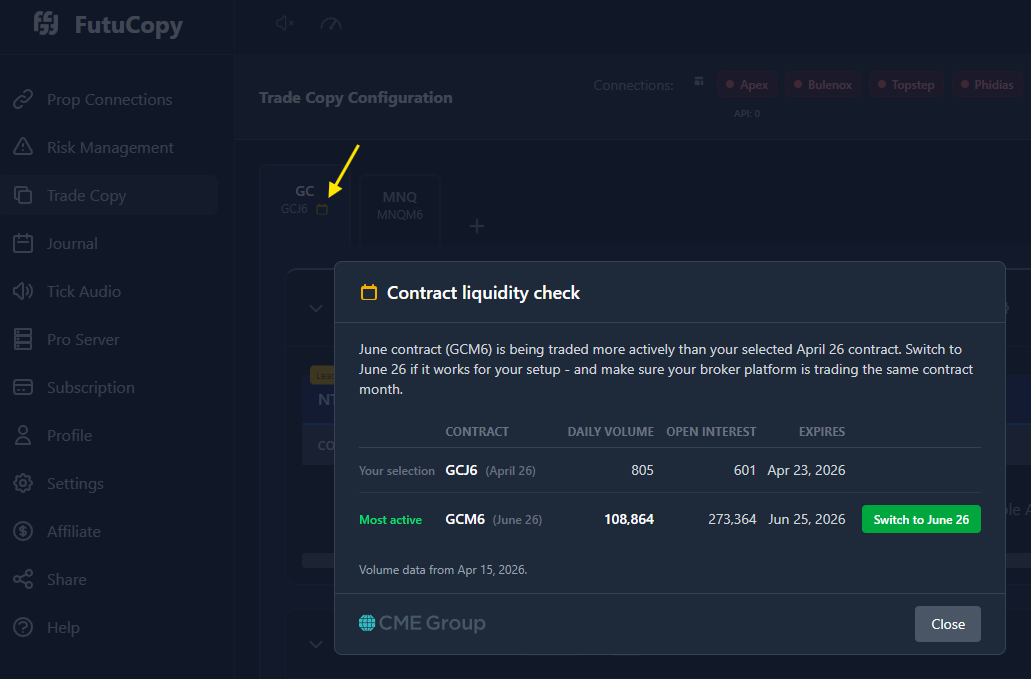
What the dialog shows
The Contract liquidity check window compares two contracts side-by-side:
- Your selection — the contract you have configured, with its daily volume, open interest, and expiration date.
- Most active — the contract month for the same product that currently has the highest daily volume, shown only if it is higher than yours.
A short explanation at the top of the window tells you why the warning was triggered (rollover, expiring soon, or expired).
The "Volume data from..." note at the bottom shows the date the liquidity numbers were captured. Volumes are refreshed daily from official CME Group statistics.
Switching to the suggested contract
If a "Most active" contract is shown, you will see a green Switch to [month] button next to it. Clicking this button will:
- Update your copy trading configuration to use the new contract month.
- Keep all your existing account mappings, risk settings, and copy rules intact.
Important: After switching, make sure your broker platform (where you place the original trades) is also trading the same new contract month. If your broker is still on the old month but FutuCopy is on the new one, your trades will not copy correctly. Always keep the leader account and the follower configuration on the same contract month.
Tips
- Check for the calendar icon every time you sit down to trade — rollover periods happen several times per year per product.
- The yellow warning is a suggestion, not a blocker. You can continue trading your selected contract if you have a reason to stay on it.
- The red warning should be acted on as soon as possible. Once a contract expires, copy trading on it will fail.